Purpose
Show Me The Money is a focused ezCRM entry point for active sales work. It removes the full Contact and Company screens so the user can stay on the actions that move revenue forward.
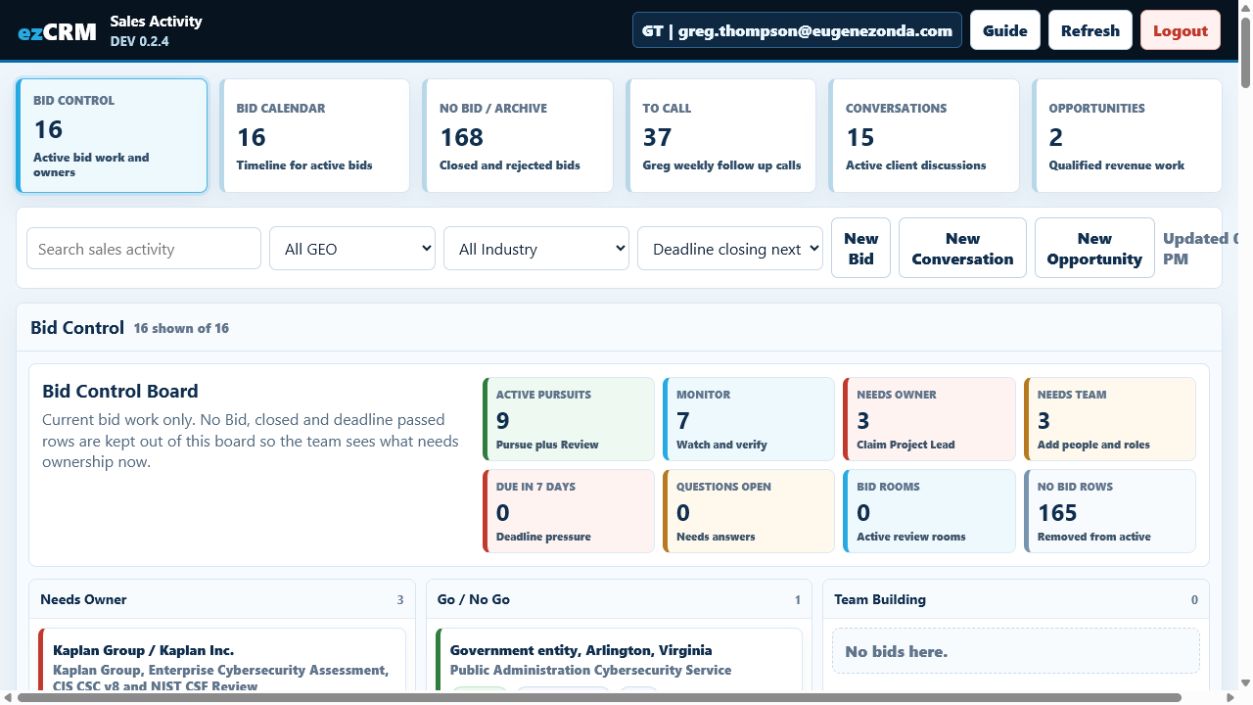
The six boxes across the top are the navigation. Select Bid Control, Bid Calendar, No Bid / Archive, To Call, Conversations, or Opportunities to change the active work list. Use Search, GEO, and Industry to narrow the active list without leaving the screen.
The working board for active bid pursuits, monitor items, ownership gaps, team gaps, questions and Bid Rooms.
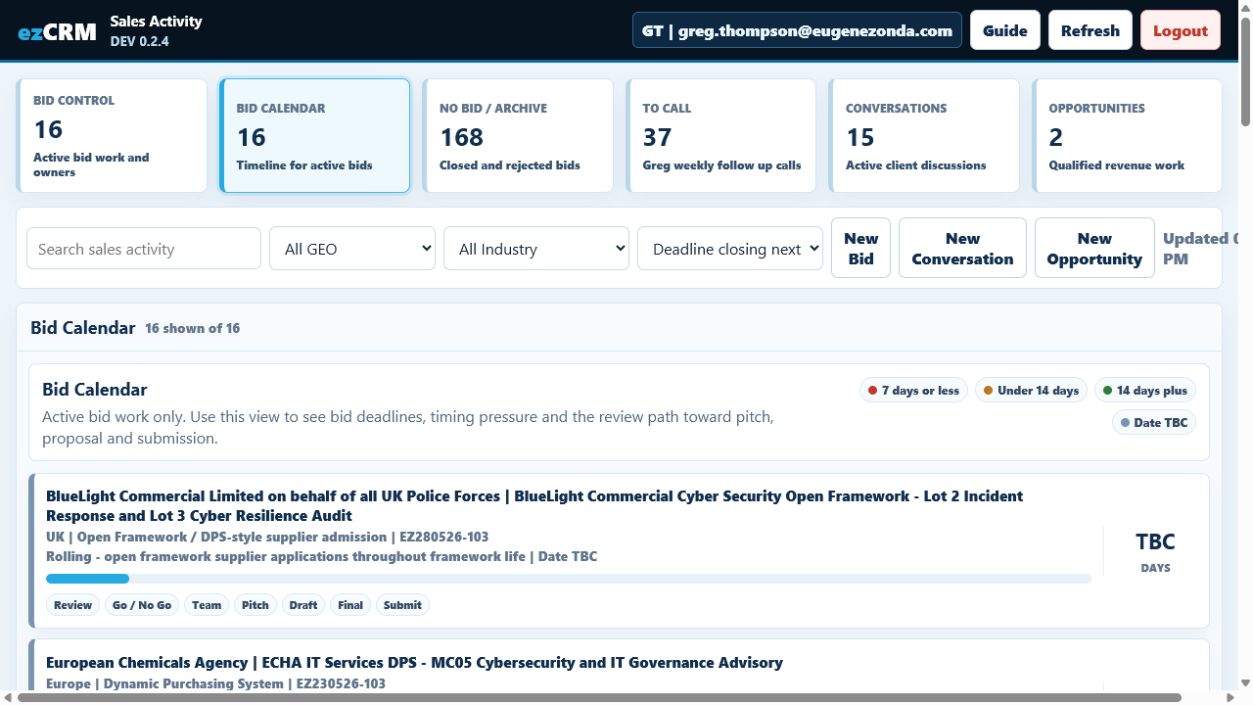
A live timeline view of active bid work, showing deadline pressure and the review path toward proposal and submission.
No Bid, closed, archived, or deadline passed bid records kept for reference but excluded from active bid work.
Greg's weekly follow up call list, with a subject line for what to open or discuss.
Live sales conversations that need notes, follow up, ownership, and next action discipline.
Open opportunities already recognised in ezCRM Company records, with contact and company lookup against existing CRM data.
Login
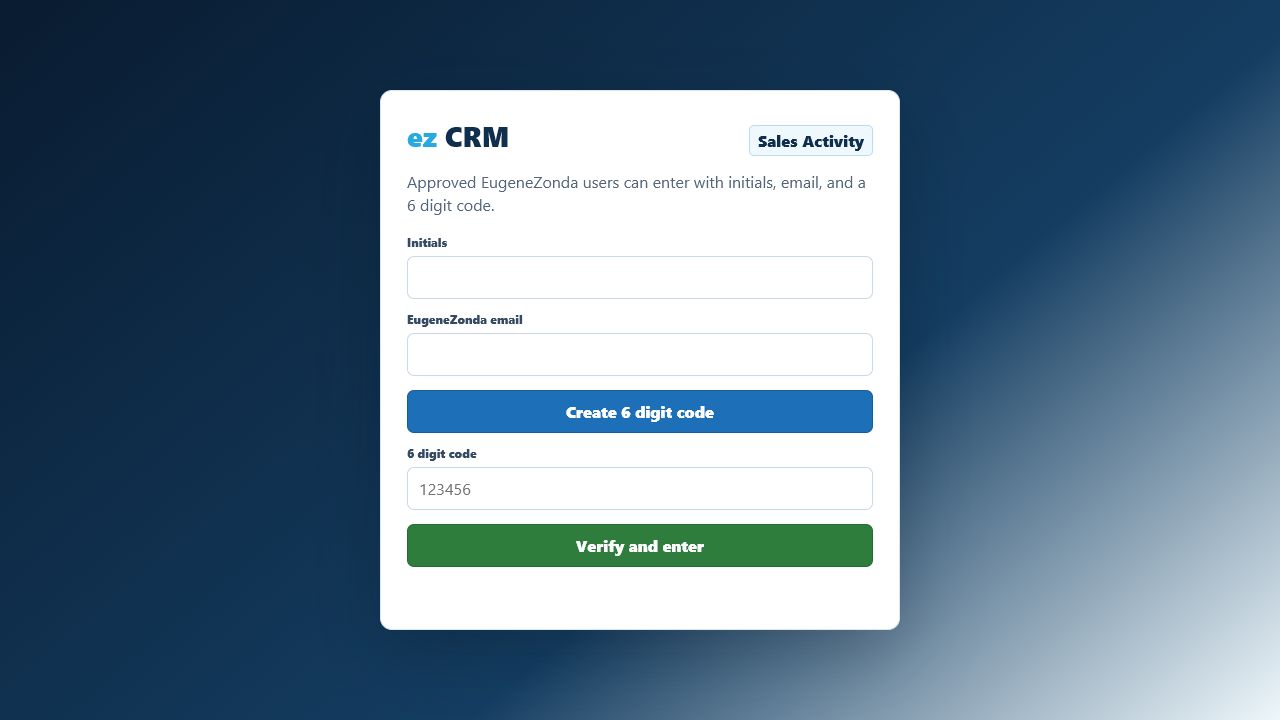
- Open the Sales Activity URL.
- Enter your approved initials and EugeneZonda email address.
- Select Create 6 digit code.
- Check your email for the one time login code.
- Enter the code and select Verify and enter.
Access uses the same approved ezCRM user list. If a user is not set up in ezCRM, they cannot enter this workspace.
Working The Buckets
Bid Control
Use this board to manage current bid work only. No Bid, Closed, Archive, Withdrawn, Lost, Expired and deadline passed rows should not appear here. They belong in No Bid / Archive.
The top snapshot shows the truthful bid position:
- Active Pursuits: bids marked Pursue or Review.
- Monitor: bids worth watching but not yet a pursuit.
- Needs Owner: bids without a Project Lead.
- Needs Team: bids that need named people and roles.
- Due in 7 Days: bids at red deadline pressure.
- Questions Open: bids with unanswered question items.
- Bid Rooms: bids with active review rooms.
- No Bid Rows: rejected rows removed from active work.
Select any snapshot tile to show only the matching bid list. Use Show Full Board to return to all board columns.
The board columns show where each bid sits: Needs Owner, Go / No Go, Team Building, Pursue, Monitor and Needs Triage. Each bid card should help answer:
- Lead: who owns the bid.
- Team: how many people are included.
- Deadline: when action is due, shown in colour on the card.
- Questions: how much is still open.
- Next: the practical next action for review.
- Watch: blockers, gaps, risks, or missing proof.
Use Claim Lead to take ownership when a bid has no Project Lead. Use Offer Help to register interest in a role. Use Open to review the mini bid file, questions, notes, documents and Bid Room access.
Bid Calendar
Use this bucket as a visual planning view for active bid work only. It excludes No Bid, Archive, Closed and deadline passed records, so the view stays focused on current money.
Each calendar row shows the buyer, bid title, GEO, industry, reference, deadline, days left and a timing colour:
- Red: 7 days or less before deadline.
- Amber: under 14 days before deadline.
- Green: 14 days or more before deadline.
- Grey: live bid where the deadline still needs confirmation.
The milestone chips help the team work backwards from the deadline: Review, Go / No Go, Team, Pitch, Draft, Final and Submit. Select a bid title to open the same mini bid file used by Bid Control.
No Bid / Archive
No Bid / Archive keeps rejected, old or no longer live bid records out of the money making list. You can still open the bid file for context, source links, documents, questions and notes, but register interest is closed for archived bids.
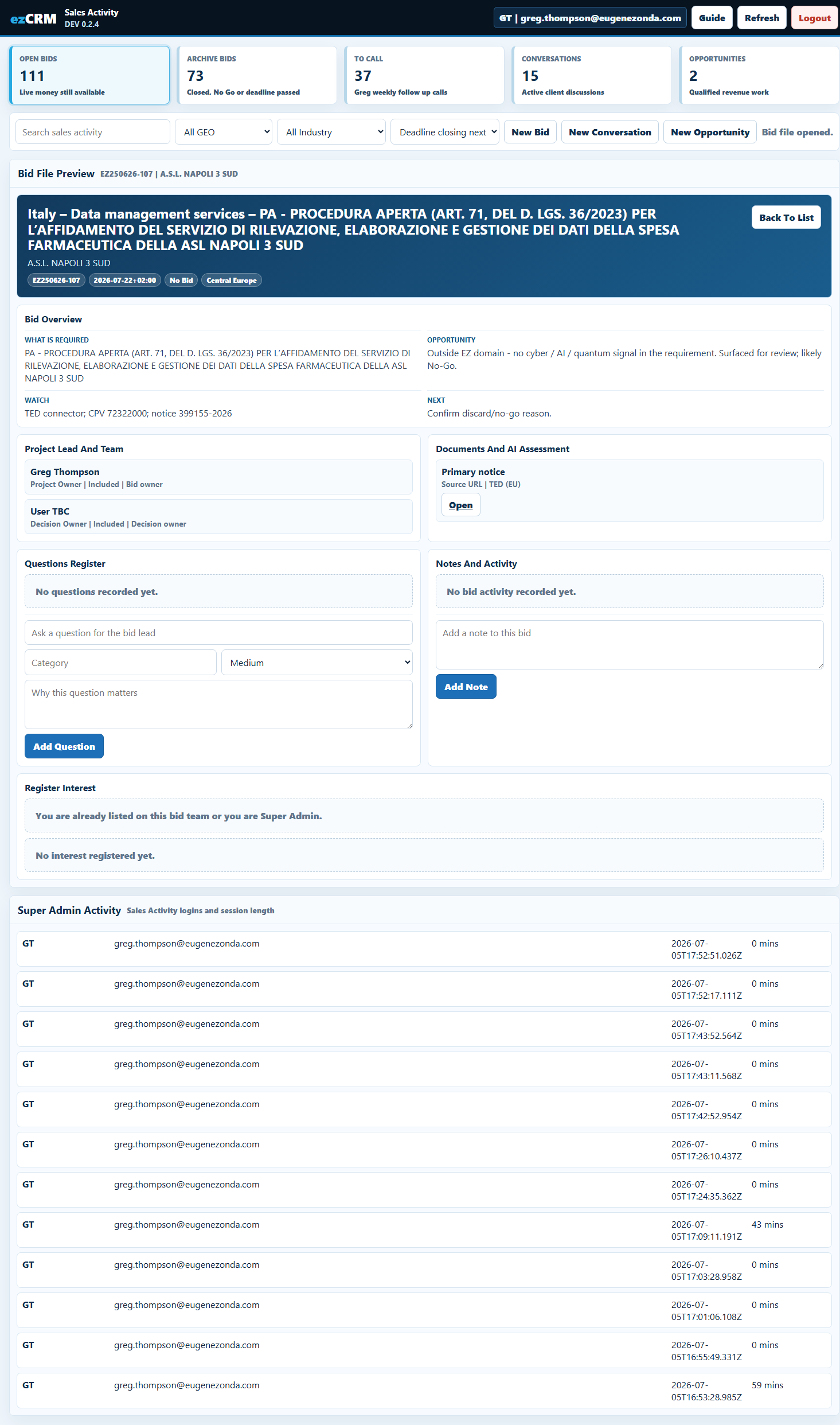
Select Open Bid File to open the mini bid file. This is not the full Bid Room, but it gives enough context for a reviewer to understand the bid and decide whether they can help.
- Review the bid overview, requirement, fit, blockers, evidence, deadline and next action.
- Open the source notice, attachments and AI assessment where they exist.
- See the Project Owner, Project Lead, delivery team members and roles already recorded.
- Review the questions register and add a new question for the bid lead.
- Add a note to the bid activity history.
- Register interest if you are not already on the delivery team. Interest is logged for the Project Lead to review. It does not automatically add you to the team.
The mini bid file uses the same approved user login. It is not anonymous. Notes, questions and interest are saved with the logged in user and recorded in the bid history.
To Call
Use this bucket as Greg's weekly follow up call list. Each row shows the contact, company, phone status, score, and a blue subject line showing what to open or discuss.
Conversations
A Conversation is an active sales discussion before it becomes a formal opportunity. It can start from a reply, call, LinkedIn message, referral, bid signal, breach signal, or direct client need.
Opportunities
Use this bucket to keep live opportunities visible. The screen shows stage, owner, value hint, contact, email, company phone, location, next action, and next action date where the data exists.
Filtering The Work
Use Search for buyer, contact, company, reference, title, next action, or notes. Use GEO to narrow the active bucket by region or country. Use Industry to narrow by sector, procurement type, service line, or offering where the data exists.
The count beside the active list shows how many records are visible after filters, compared with the full bucket count.
Creating Or Updating A Conversation
- Select New Conversation, or open an existing Conversation and select Edit.
- Add or update the company, contact, offering, pain point, summary, next action, owner, and next action date.
- Use Add Note for a new dated update.
- Use Standing Notes for longer working context that should stay visible.
- Select Save Conversation.
Every save is recorded in the normal ezCRM audit trail. The note log keeps the edit history easier to read inside the Conversation.
Adding New Sales Activity
New Bid
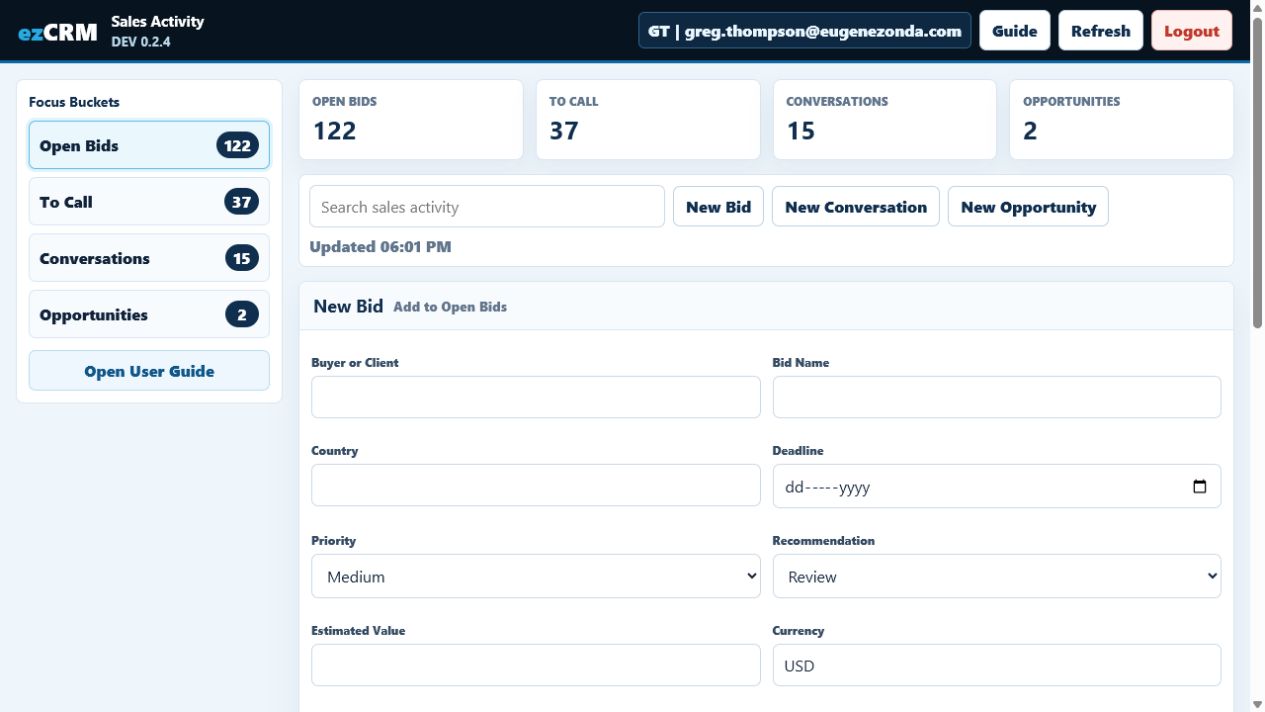
Use New Bid when a tender, RFP, RFI, framework, notice, or formal buying process needs to enter the bid register. Add the buyer, bid name, deadline, source URL, summary, next action, and value where known.
New Conversation
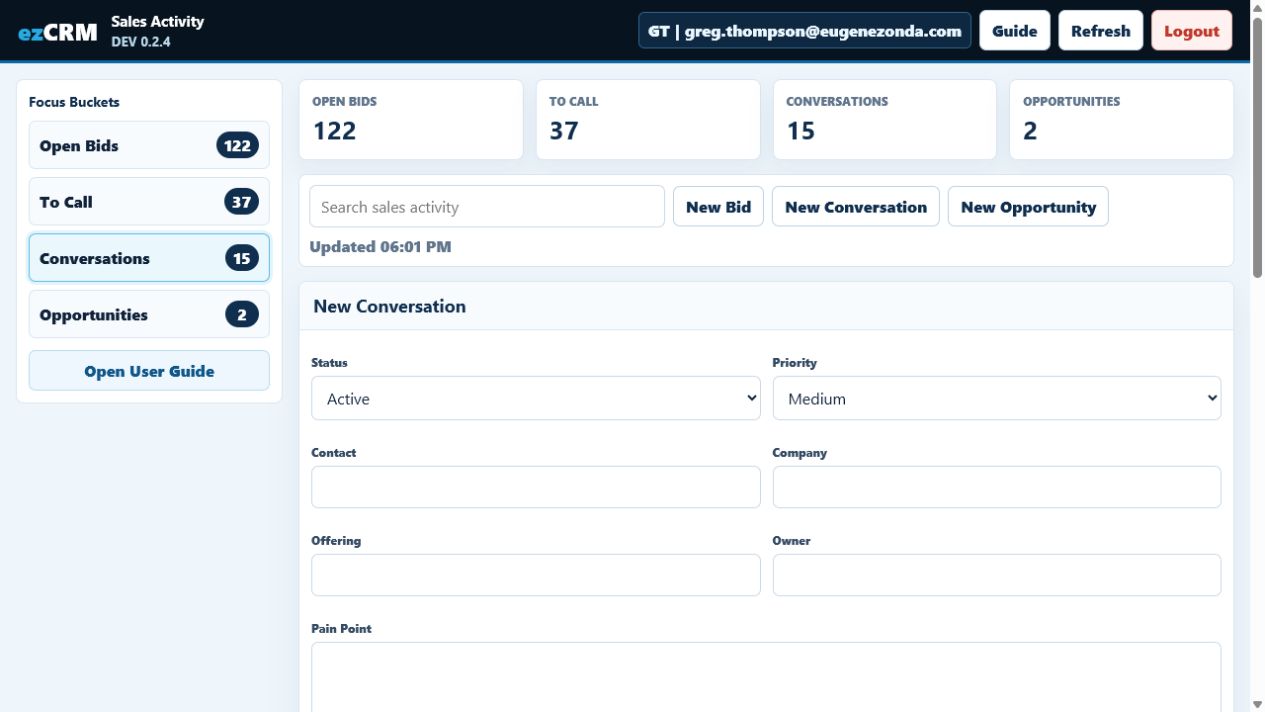
Use New Conversation when there is a live sales discussion, reply, LinkedIn exchange, referral, or meeting path that needs follow up but is not yet a formal opportunity.
New Opportunity
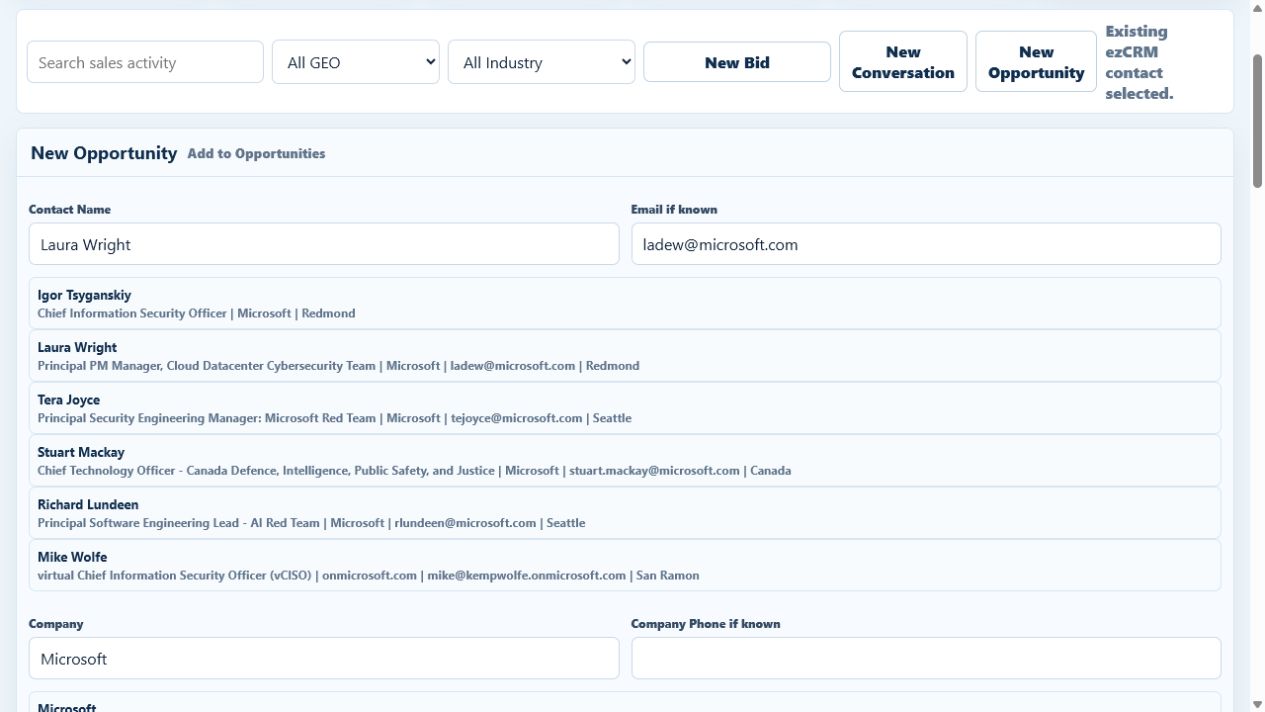
Use New Opportunity when the client need is recognised as a real revenue opportunity. Start with Contact Name and Company. As you type, the form checks ezCRM for existing contacts and companies so you can select the right record instead of creating a duplicate.
- Type the contact name, email, company, or title, then select the matching ezCRM contact if it appears.
- Check the email field below Contact Name. Add it manually if it is known but not already in ezCRM.
- Type the company name, then select the matching ezCRM company. For example, typing Microsoft should resolve to the existing Microsoft company record if it is already in ezCRM.
- Check Company Phone if known.
- Use City, Country, and State in the same row. The form applies the same CRM GEO logic and shows GEO plus Time Zone.
- Add opportunity name, stage, owner, value, expected close timing, service line, problem statement, scope, next action, and notes.
These buttons write into the same DEV data used by the full CRM. They are not a separate side register.
Super Admin Review
Super Admin users can see Sales Activity sessions. The register records who logged in, when the session started, the last seen time, approximate duration, and key actions such as opening buckets, viewing To Call rows, and saving Conversations.
The audit trail is not a productivity score. It is a control register so the business can understand who accessed the focused sales area and what changed.
What This Screen Does Not Do
- It does not replace the full ezCRM Contact page.
- It does not replace the full Company record.
- It does not give a user new permissions they do not already have.
- It does not expose other CRM modules unless the logged in user already has access elsewhere.